
This translation is community contributed and may not be up to date. We only maintain the English version of the documentation. Read this manual in English
Animación de propiedades
Todas las propiedades numéricas (number, vector3, vector4 y cuaterniones) y las constantes de shader se pueden animar con el sistema de animación integrado, usando la función go.animate(). El motor interpolará automáticamente las propiedades según los modos de reproducción y las funciones de easing indicados. También puedes especificar funciones de easing personalizadas.

Animación de propiedades
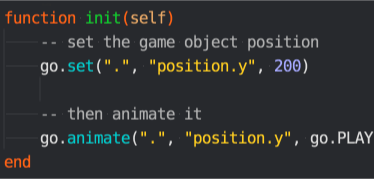
Para animar una propiedad de un objeto de juego (Game object) o componente, usa la función go.animate(). Para las propiedades de nodos GUI, la función correspondiente es gui.animate().
-- Define position.y en 200
go.set(".", "position.y", 200)
-- Luego la anima
go.animate(".", "position.y", go.PLAYBACK_LOOP_PINGPONG, 100, go.EASING_OUTBOUNCE, 2)
Para detener todas las animaciones de una propiedad determinada, llama a go.cancel_animations(), o, para nodos GUI, a gui.cancel_animations():
-- Detiene la animación de rotación euler z en el objeto de juego actual
go.cancel_animations(".", "euler.z")
Si cancelas la animación de una propiedad compuesta, como position, también se cancelarán las animaciones de sus subcomponentes (position.x, position.y y position.z).
El manual de propiedades contiene todas las propiedades disponibles en objetos de juego, componentes y nodos GUI.
Animación de propiedades de nodos GUI
Casi todas las propiedades de los nodos GUI se pueden animar. Por ejemplo, puedes hacer invisible un nodo definiendo su propiedad color con transparencia total y luego hacerlo aparecer gradualmente animando el color a blanco (es decir, sin color de tinte).
local node = gui.get_node("button")
local color = gui.get_color(node)
-- Anima el color a blanco
gui.animate(node, gui.PROP_COLOR, vmath.vector4(1, 1, 1, 1), gui.EASING_INOUTQUAD, 0.5)
-- Anima el componente rojo del color de outline
gui.animate(node, "outline.x", 1, gui.EASING_INOUTQUAD, 0.5)
-- Y mueve el nodo a la posición x 100
gui.animate(node, hash("position.x"), 100, gui.EASING_INOUTQUAD, 0.5)
Callbacks de finalización
Las funciones de animación de propiedades go.animate() y gui.animate() admiten una función callback Lua opcional como último argumento. Esta función se llamará cuando la animación se haya reproducido hasta el final. La función nunca se llama para animaciones en bucle, ni cuando una animación se cancela manualmente mediante go.cancel_animations() o gui.cancel_animations(). El callback se puede usar para activar eventos al finalizar una animación o para encadenar varias animaciones.
Easing
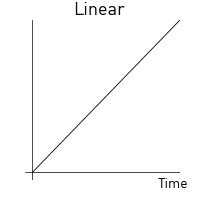
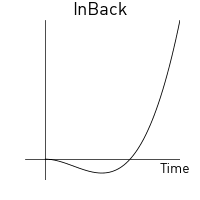
Easing define cómo cambia el valor animado a lo largo del tiempo. Las imágenes siguientes describen las funciones aplicadas a lo largo del tiempo para crear el easing.
Los siguientes son valores de easing válidos para go.animate():
go.EASING_LINEAR |
|
go.EASING_INBACK |
go.EASING_OUTBACK |
go.EASING_INOUTBACK |
go.EASING_OUTINBACK |
go.EASING_INBOUNCE |
go.EASING_OUTBOUNCE |
go.EASING_INOUTBOUNCE |
go.EASING_OUTINBOUNCE |
go.EASING_INELASTIC |
go.EASING_OUTELASTIC |
go.EASING_INOUTELASTIC |
go.EASING_OUTINELASTIC |
go.EASING_INSINE |
go.EASING_OUTSINE |
go.EASING_INOUTSINE |
go.EASING_OUTINSINE |
go.EASING_INEXPO |
go.EASING_OUTEXPO |
go.EASING_INOUTEXPO |
go.EASING_OUTINEXPO |
go.EASING_INCIRC |
go.EASING_OUTCIRC |
go.EASING_INOUTCIRC |
go.EASING_OUTINCIRC |
go.EASING_INQUAD |
go.EASING_OUTQUAD |
go.EASING_INOUTQUAD |
go.EASING_OUTINQUAD |
go.EASING_INCUBIC |
go.EASING_OUTCUBIC |
go.EASING_INOUTCUBIC |
go.EASING_OUTINCUBIC |
go.EASING_INQUART |
go.EASING_OUTQUART |
go.EASING_INOUTQUART |
go.EASING_OUTINQUART |
go.EASING_INQUINT |
go.EASING_OUTQUINT |
go.EASING_INOUTQUINT |
go.EASING_OUTINQUINT |
Los siguientes son valores de easing válidos para gui.animate():
gui.EASING_LINEAR |
|
gui.EASING_INBACK |
gui.EASING_OUTBACK |
gui.EASING_INOUTBACK |
gui.EASING_OUTINBACK |
gui.EASING_INBOUNCE |
gui.EASING_OUTBOUNCE |
gui.EASING_INOUTBOUNCE |
gui.EASING_OUTINBOUNCE |
gui.EASING_INELASTIC |
gui.EASING_OUTELASTIC |
gui.EASING_INOUTELASTIC |
gui.EASING_OUTINELASTIC |
gui.EASING_INSINE |
gui.EASING_OUTSINE |
gui.EASING_INOUTSINE |
gui.EASING_OUTINSINE |
gui.EASING_INEXPO |
gui.EASING_OUTEXPO |
gui.EASING_INOUTEXPO |
gui.EASING_OUTINEXPO |
gui.EASING_INCIRC |
gui.EASING_OUTCIRC |
gui.EASING_INOUTCIRC |
gui.EASING_OUTINCIRC |
gui.EASING_INQUAD |
gui.EASING_OUTQUAD |
gui.EASING_INOUTQUAD |
gui.EASING_OUTINQUAD |
gui.EASING_INCUBIC |
gui.EASING_OUTCUBIC |
gui.EASING_INOUTCUBIC |
gui.EASING_OUTINCUBIC |
gui.EASING_INQUART |
gui.EASING_OUTQUART |
gui.EASING_INOUTQUART |
gui.EASING_OUTINQUART |
gui.EASING_INQUINT |
gui.EASING_OUTQUINT |
gui.EASING_INOUTQUINT |
gui.EASING_OUTINQUINT |
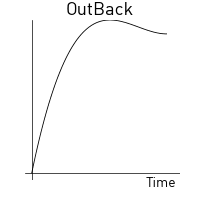
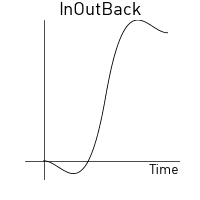

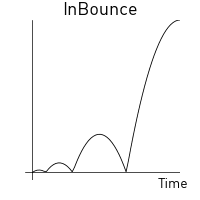
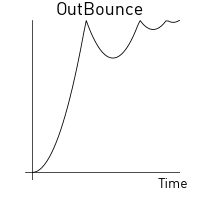
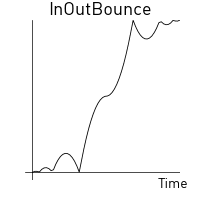
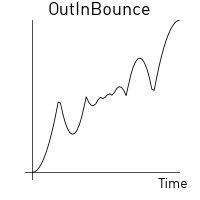
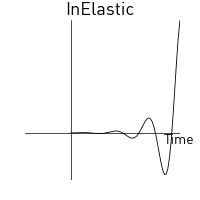
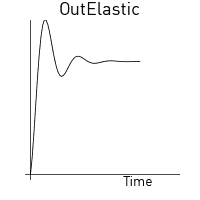
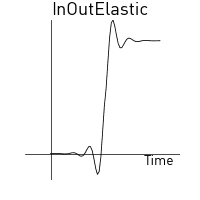
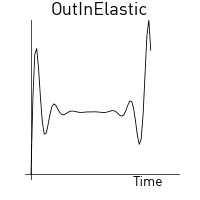
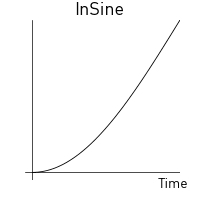
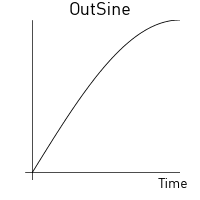
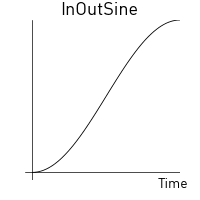
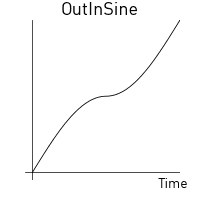
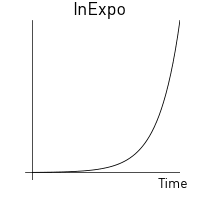
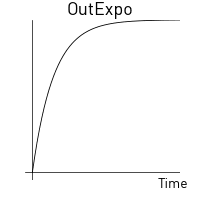
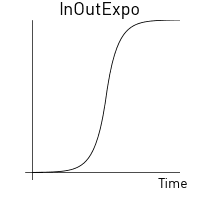
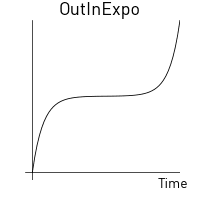
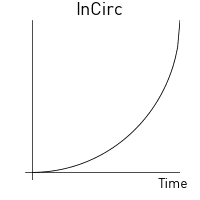
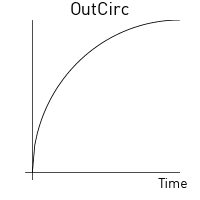
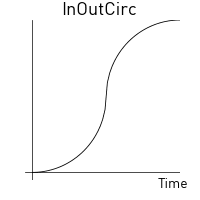
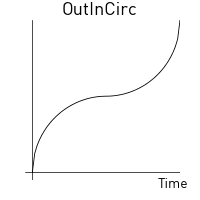
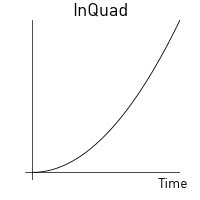
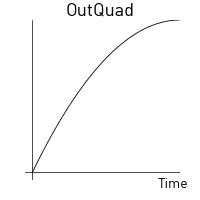
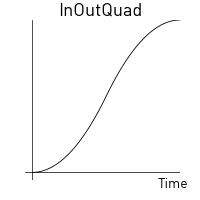
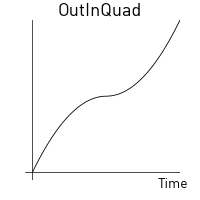
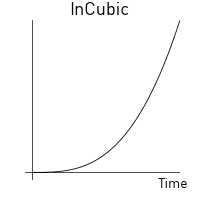
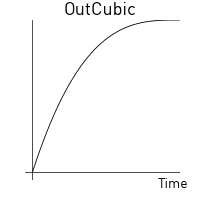
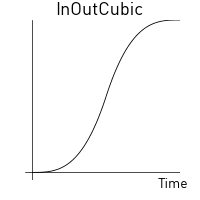
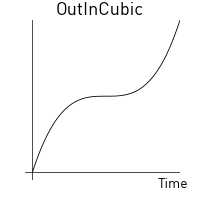
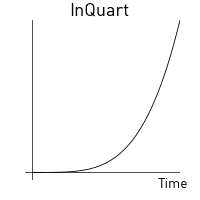
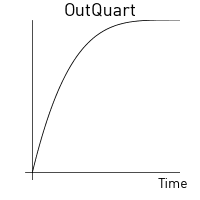
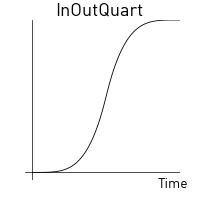
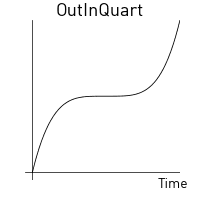
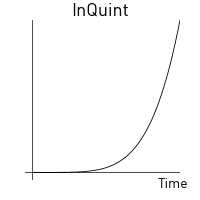
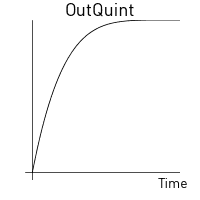
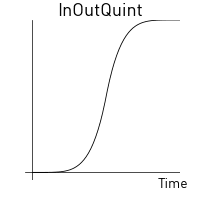
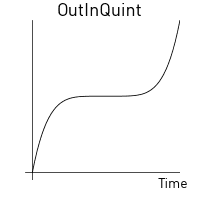
Easing personalizado
Puedes crear curvas de easing personalizadas definiendo un vector con un conjunto de valores y luego proporcionando el vector en lugar de una de las constantes de easing predefinidas anteriores. Los valores del vector expresan una curva desde el valor inicial (0) hasta el valor objetivo (1). El runtime toma muestras de valores del vector e interpola linealmente al calcular valores entre los puntos expresados en el vector.
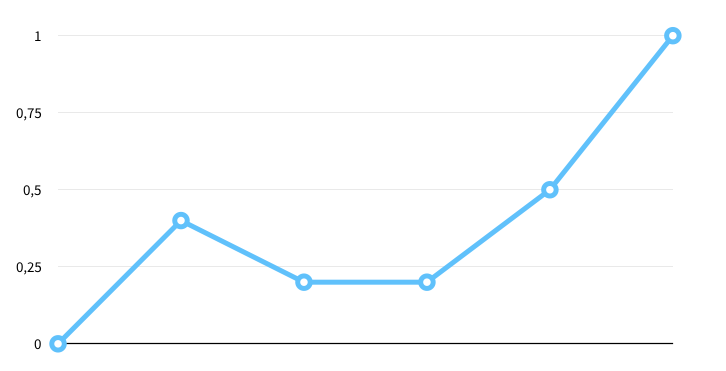
Por ejemplo, el vector:
local values = { 0, 0.4, 0.2, 0.2, 0.5, 1 }
local my_easing = vmath.vector(values)
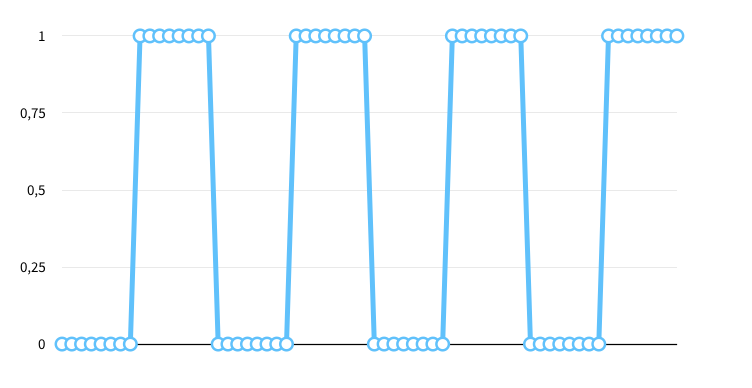
produce la curva siguiente:
El ejemplo siguiente hace que la posición y de un objeto de juego salte entre la posición actual y 200 según una curva cuadrada:
local values = { 0, 0, 0, 0, 0, 0, 0, 0,
                 1, 1, 1, 1, 1, 1, 1, 1,
                 0, 0, 0, 0, 0, 0, 0, 0,
                 1, 1, 1, 1, 1, 1, 1, 1,
                 0, 0, 0, 0, 0, 0, 0, 0,
                 1, 1, 1, 1, 1, 1, 1, 1,
                 0, 0, 0, 0, 0, 0, 0, 0,
                 1, 1, 1, 1, 1, 1, 1, 1 }
local square_easing = vmath.vector(values)
go.animate("go", "position.y", go.PLAYBACK_LOOP_PINGPONG, 200, square_easing, 2.0)